Overview
Situation 1 – Only ONE register is not working
If only a single register is affected, follow these steps to properly power cycle and troubleshoot:
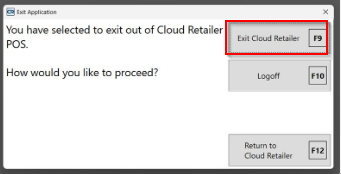
Step 1: Exit Cloud Retailer POS to fully close the application.
- Press the 'Esc' key on your keyboard and click the Red X button to do this.
- Click Exit Cloud Retailer when prompted:
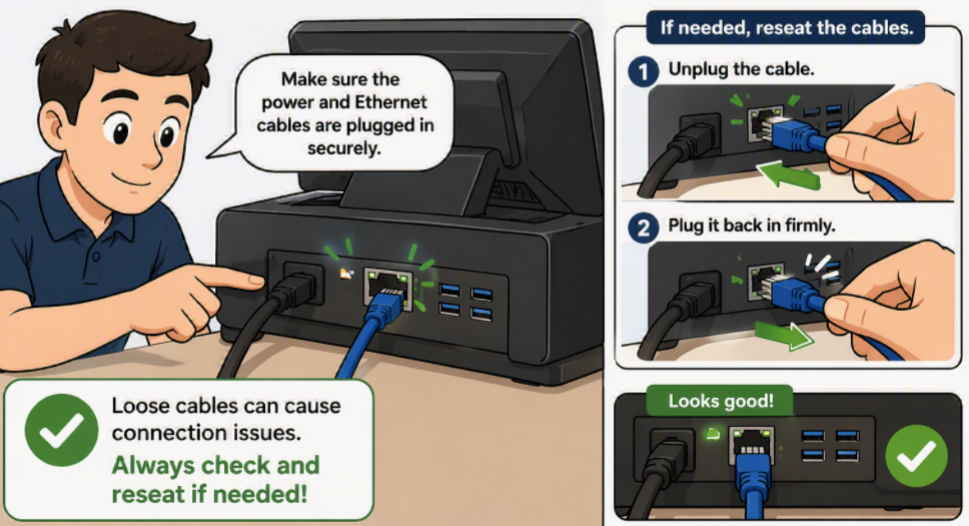
Step 2: Check physical connections. Ensure all power and Ethernet cables are securely connected. Reseat them if necessary.
Step 3: Reboot the card reader (see linked article for steps).
Note: A full computer reboot is not required unless the register is frozen or unresponsive.
Situation 2 – ALL registers are not working
If all registers are impacted, follow these steps:
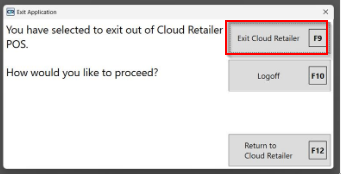
Step 1: Exit Cloud Retailer POS on all registers.
- Press the 'Esc' key on your keyboard and click the Red X button to do this.
- Click Exit Cloud Retailer when prompted:
Step 2: Check physical connections. Confirm all power and Ethernet cables are properly connected.
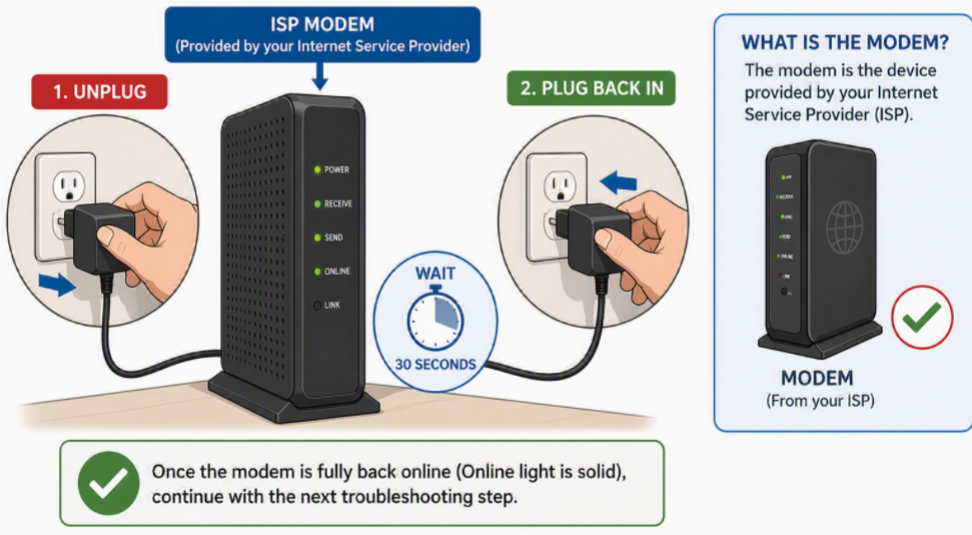
Step 3: Reboot your modem (Internet Service Provider equipment).
Step 4: Reboot all network equipment (e.g., routers, switches).
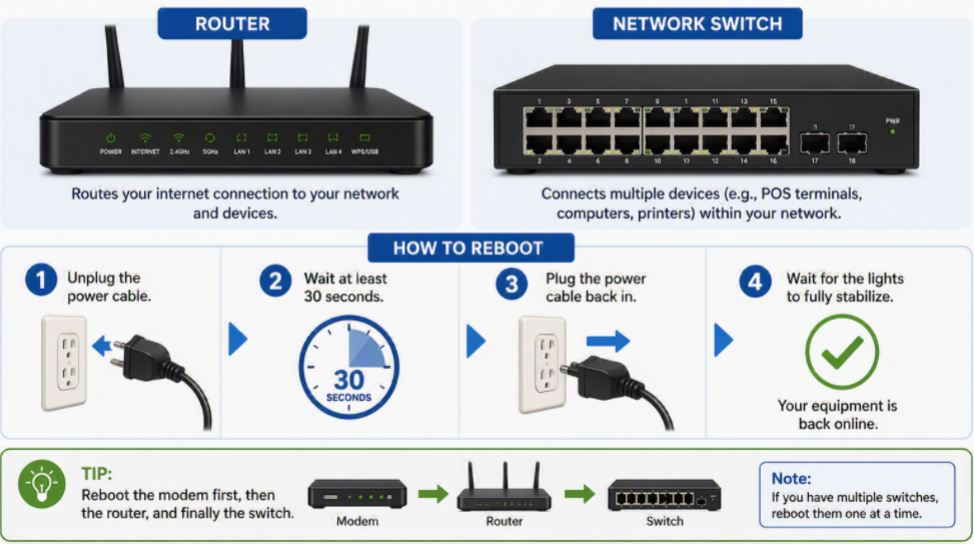
Step 5: Reboot the card reader(s) (see linked article for steps).
Note: Reboot computers only if they are frozen or unresponsive.
Network Scope Reminder:

We handle POS and card reader–related troubleshooting.

Router configurations, firewall settings, and ISP issues are outside our scope and require a local IT provider. We can collaborate with your IT team to ensure they have what they need to support your POS environment.

If escalation is required, we’ll flag it immediately.
References
- How to find the serial number of your card reader.
- How to reboot your card reader.
- Emergency Support Criteria
- Cloud Retailer Support Service Details
Was this article helpful?
That’s Great!
Thank you for your feedback
Sorry! We couldn't be helpful
Thank you for your feedback
Feedback sent
We appreciate your effort and will try to fix the article