Overview
This article shows a step-by-step guide on how you can disable Power Saving Mode on your Windows PC (Windows 10 & Windows 11)
This is a recommended step to ensure that the power saving does not interfere with or cause any delays when applying Cloud Retailer updates
Procedure
Prevent System Sleep (Windows)
This process stops the computer and display from entering low-power sleep states, keeping them always active.
- Click Start
- Search for Control Panel
- Select Power Options

- On the left-hand side, select Change when the computer sleeps

- On the Put the computer to sleep section, click both drop downs and select Never
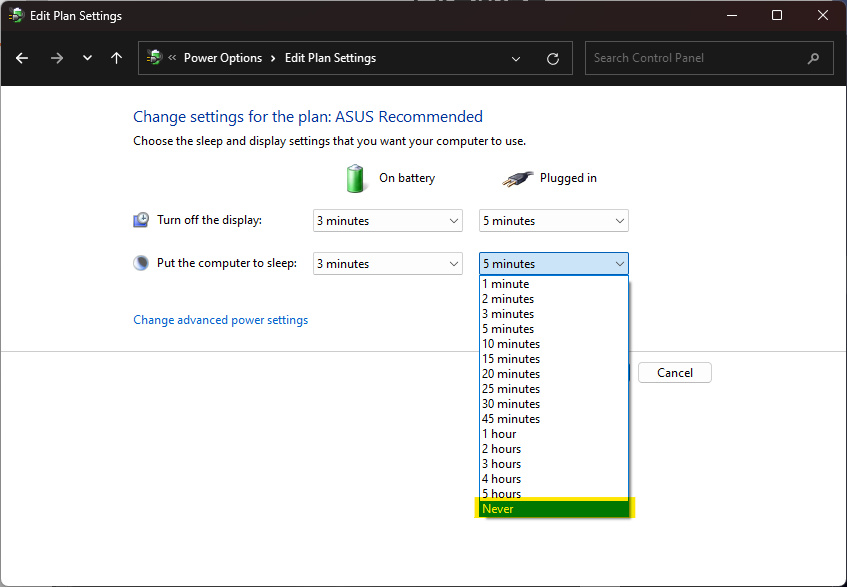
Click "Additional power settings" (or "Related settings").
Select "Change plan settings" for your currently active power plan.
Click "Change advanced power settings."
Expand the "Sleep" section.
Expand "Hibernate after." Change the setting for both "Plugged in" and "On battery" to Never (or 0).
To finish, click OK to save the changes.
Secure Network Adapter Uptime
To ensure the network card remains powered on and connected, stopping the system from turning it off for power conservation:
Open Device Manager: Search the Windows start menu for "Device Manager" and open it.
Locate Network Adapter: Expand the "Network adapters" group. Right-click your active Ethernet or Wi-Fi card.
Access Properties: Select "Properties" from the menu.
Adjust Power Management: Click the "Power Management" tab.
Uncheck the box next to "Allow the computer to turn off this device to save power."
Save: Click OK to apply this configuration. This guarantees a solid network connection even when the PC is idle.
Secure USB Adapter Uptime
To ensure that your USB Devices remain powered on and connected, stopping the system from turning the USB ports off for power conservation:
Open Device Manager: Search the Windows start menu for "Device Manager" and open it.
Locate USB Adapters: Expand the "Universal Serial Bus controllers" group. Right-click on each of the entries in the group.
Access Properties: Select "Properties" from the menu.
Adjust Power Management: Click the "Power Management" tab - NOTE: Some of the entried will not have this tab, you can ignore those entries.
Uncheck the box next to "Allow the computer to turn off this device to save power."
Save: Click OK to apply this configuration. This guarantees solid USB connections even when the PC is idle.
References
Average Time to Complete
5 minutes
Was this article helpful?
That’s Great!
Thank you for your feedback
Sorry! We couldn't be helpful
Thank you for your feedback
Feedback sent
We appreciate your effort and will try to fix the article