If you are using SpeedyDock and would like use this functionality, please contact support@cloudretailer.com to have this feature installed into your back office.
Overview
Our Speedy Pay tool is used in conjunction with SpeedyDock to help create an invoice for a Cloud Retailer transaction. This will allow your SpeedyDock customers to save their preferred payment method in their account to easily pay for items whether they're in your marina or on their boat.
How to Void a Speedy Pay Transaction
Cloud Retailer and SpeedyDock do not communicate beyond invoice creation, so if a transaction needs to be refunded or voided, you must do so in both systems.
Cloud Retailer
SpeedyDock
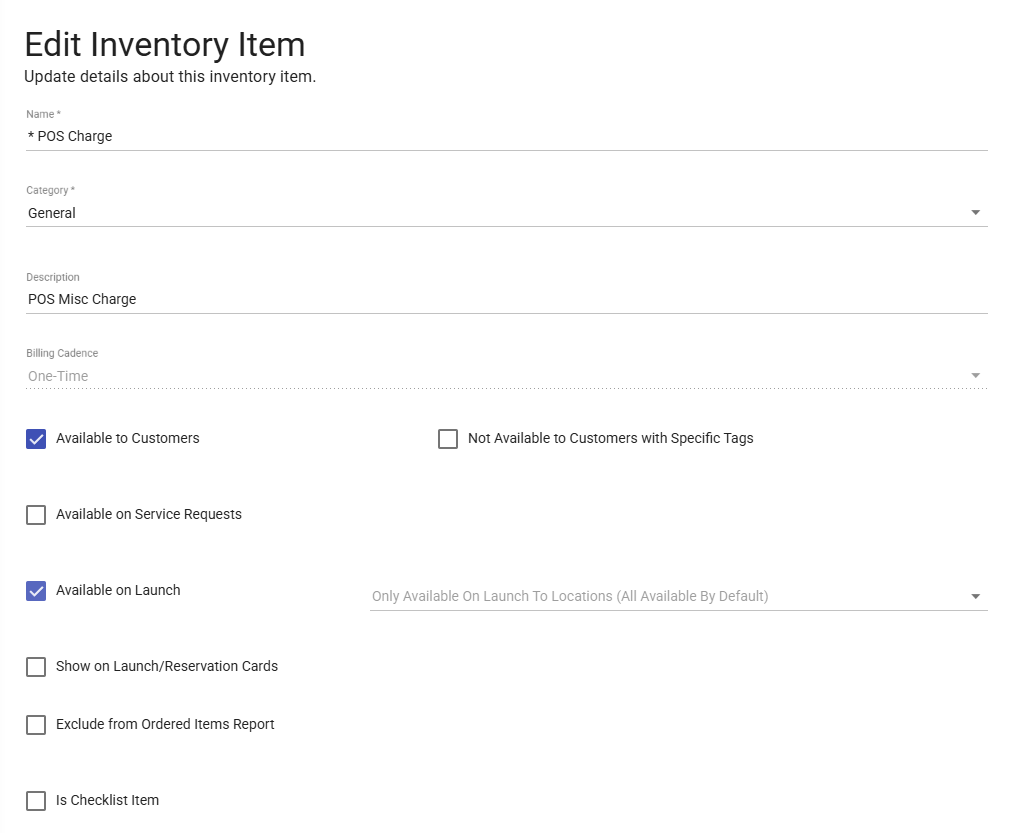
Creating the POS Charge Item in SpeedyDock
- Log into SpeedyDock
- Navigate to Inventory > Items
- Create a new inventory item
- Use the following settings
- Name: * POS Charge
- Category: Select the appropriate category
- Description: POS Misc Charge
- Billing Cadence: One-Time
- Available to Customers: Checked
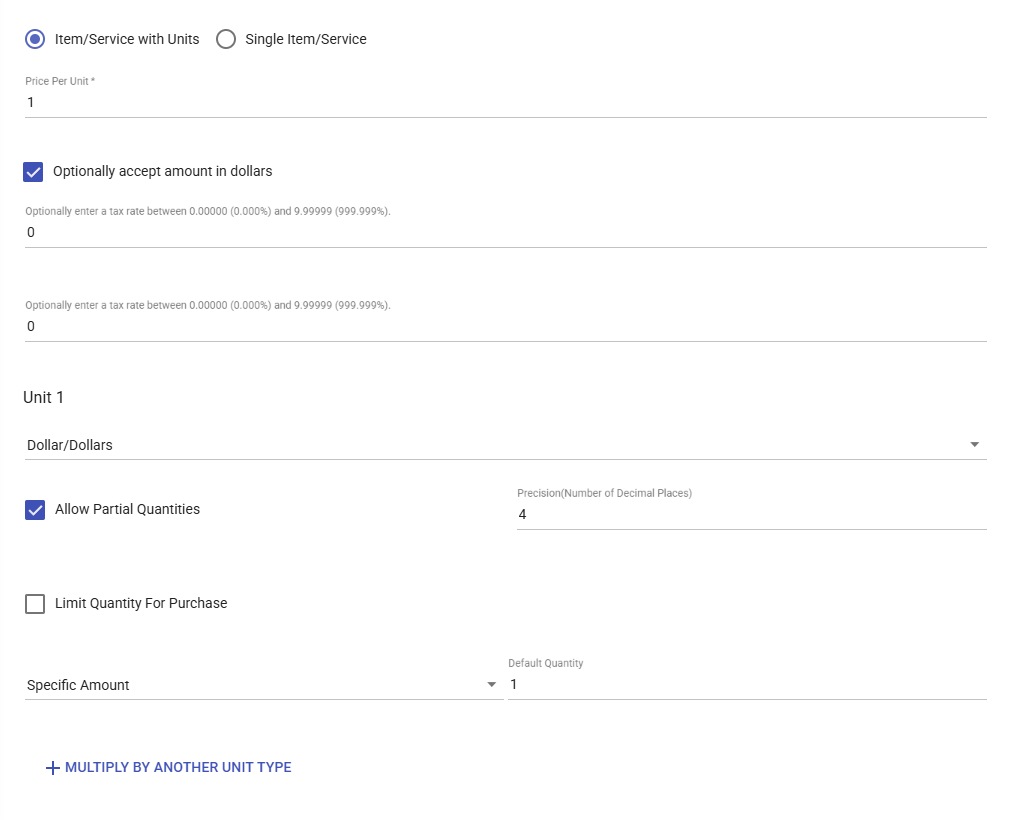
- Item/Service with Units: Radio selected
- Price Per Unit: 1
- Optionally accept amount in dollars: Checked
- Unit 1: Dollar/Dollars
- Allow Partial Quantities: Checked
- Precision: 4
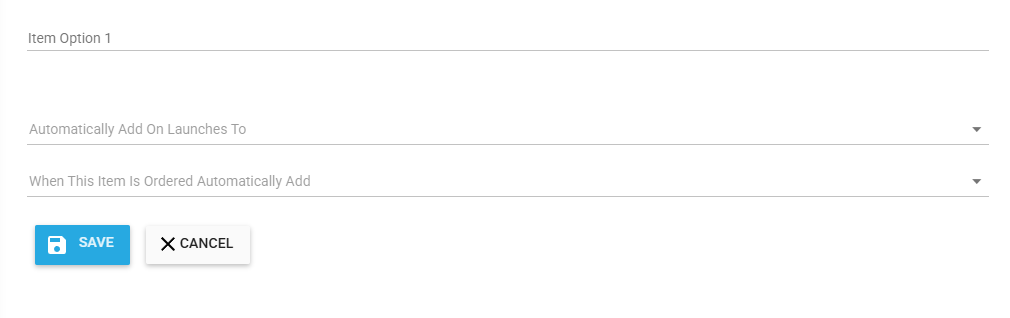
- Save the item
When finished, the item should appear in the inventory list similar to the image below.

Creating the Speedy Pay Button in Cloud Retailer
- Log into your back office
- Navigate to Admin > Task Pads
- Select the default task pad for your location
- Select the task pad button you would like your Speedy Pay button to be
- In the Text section enter Speedy Pay (this is the text your POS will show)
- Set the Command to Custom: Take Speedy Pay Payment
- Click on the Pencil next to the text box
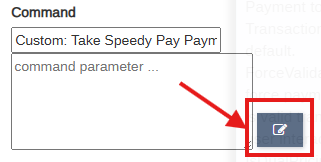
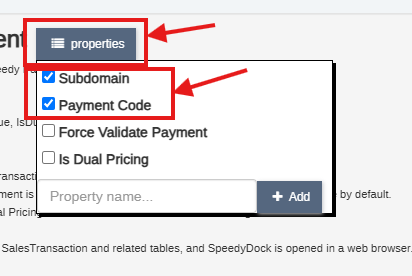
- Click on the Properties button and check Subdomain and Payment Code
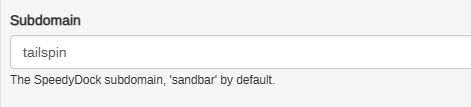
- For Subdomain, enter the first part of your SpeedyDock address, for example, if your SpeedyDock address is https://tailspin.speedydock.com then enter tailspin
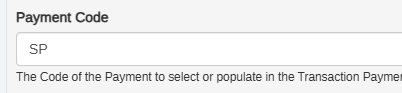
- For Payment Code enter SP
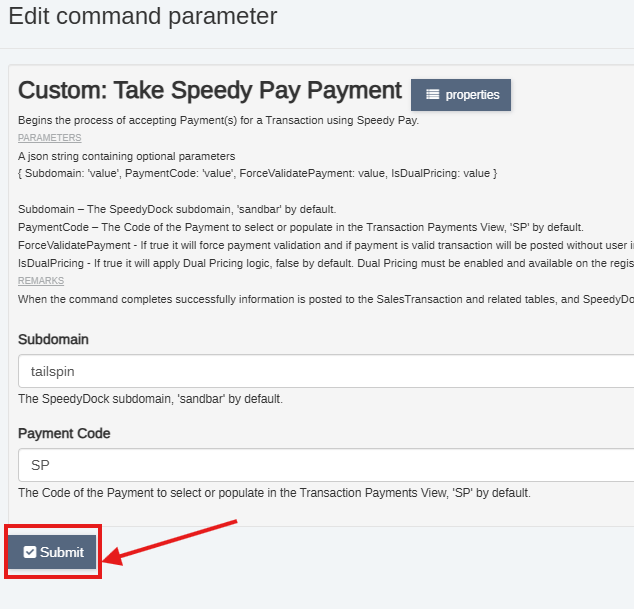
- Click on Submit at the bottom
- Save the task pad
Was this article helpful?
That’s Great!
Thank you for your feedback
Sorry! We couldn't be helpful
Thank you for your feedback
Feedback sent
We appreciate your effort and will try to fix the article